 Fuzzzy Core
Your first plate
Photograph a meal, check the estimate and add it to your day.
Step 1
Open your day
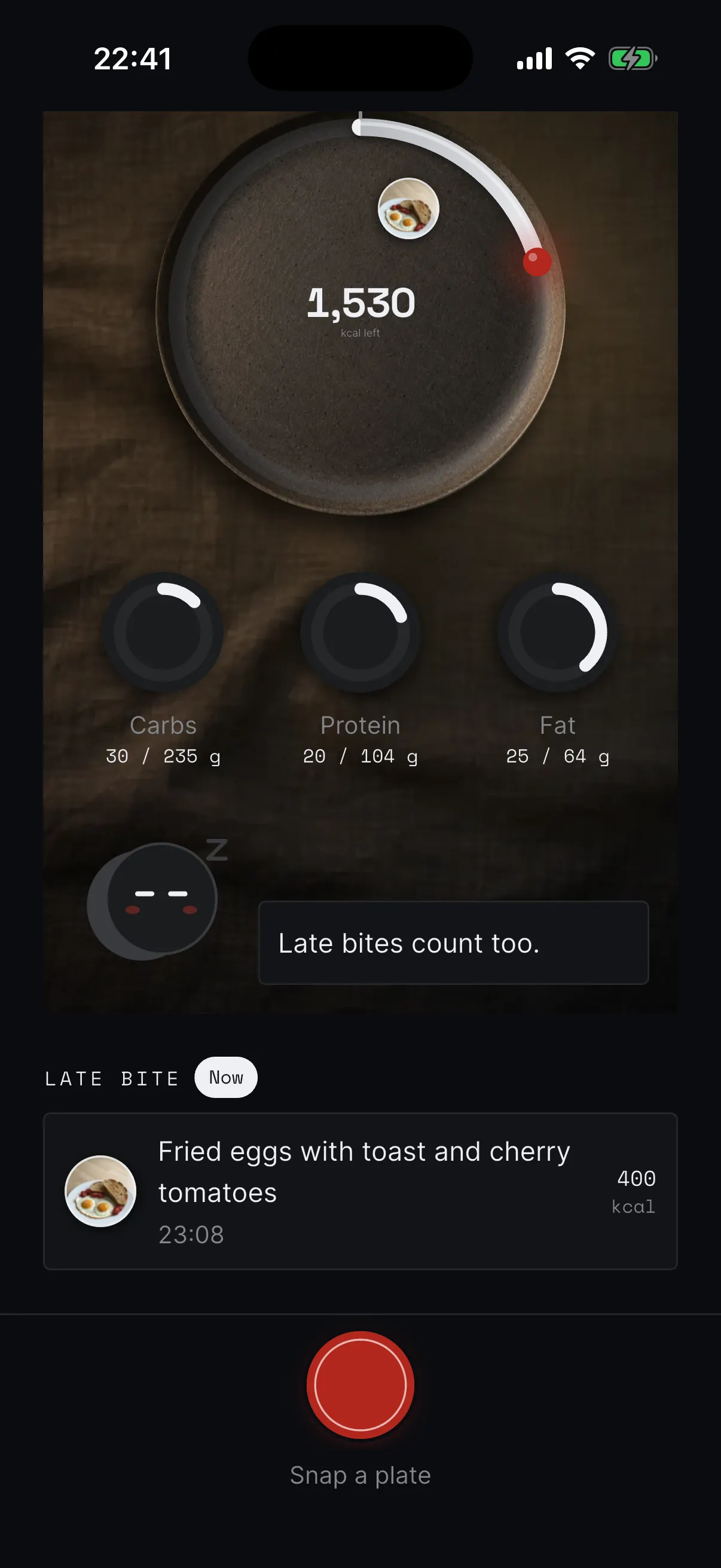
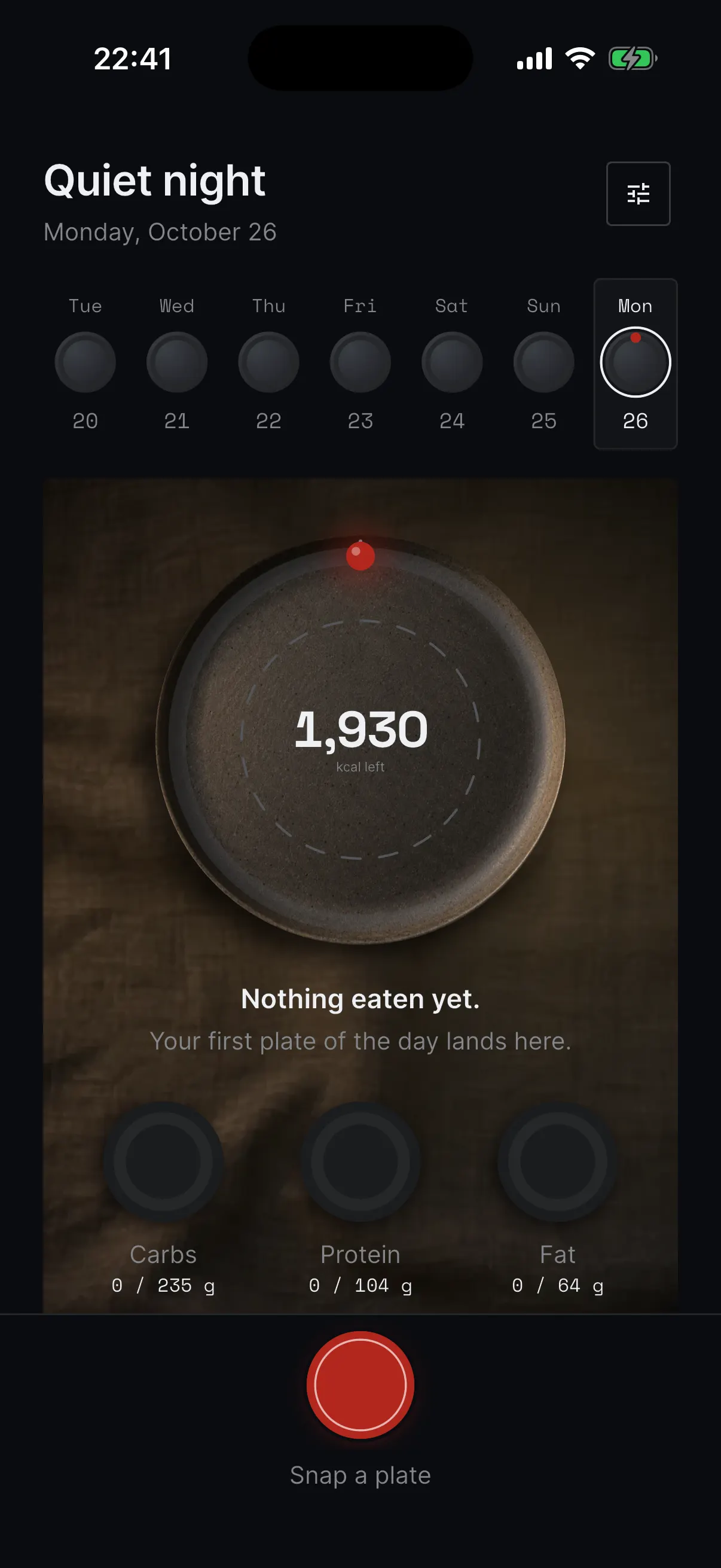
Finish Your plan and open Today. Meal readings need an active plan. Tap the red Snap a plate button at the bottom.
Step 2
Choose your photo
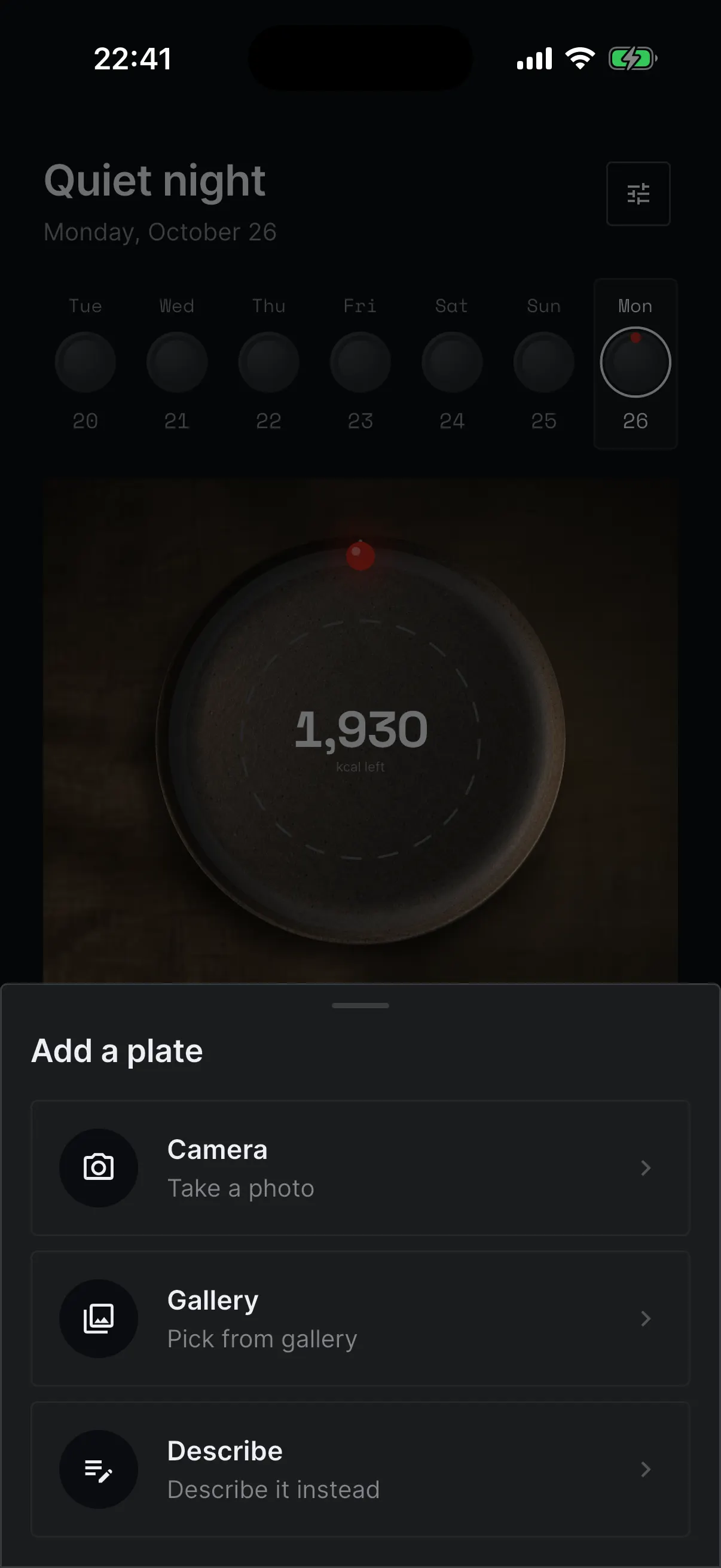
Choose Camera to take a photo, or Gallery to pick a meal photo you already have. Keep the whole meal in view.
Step 3
Check the reading
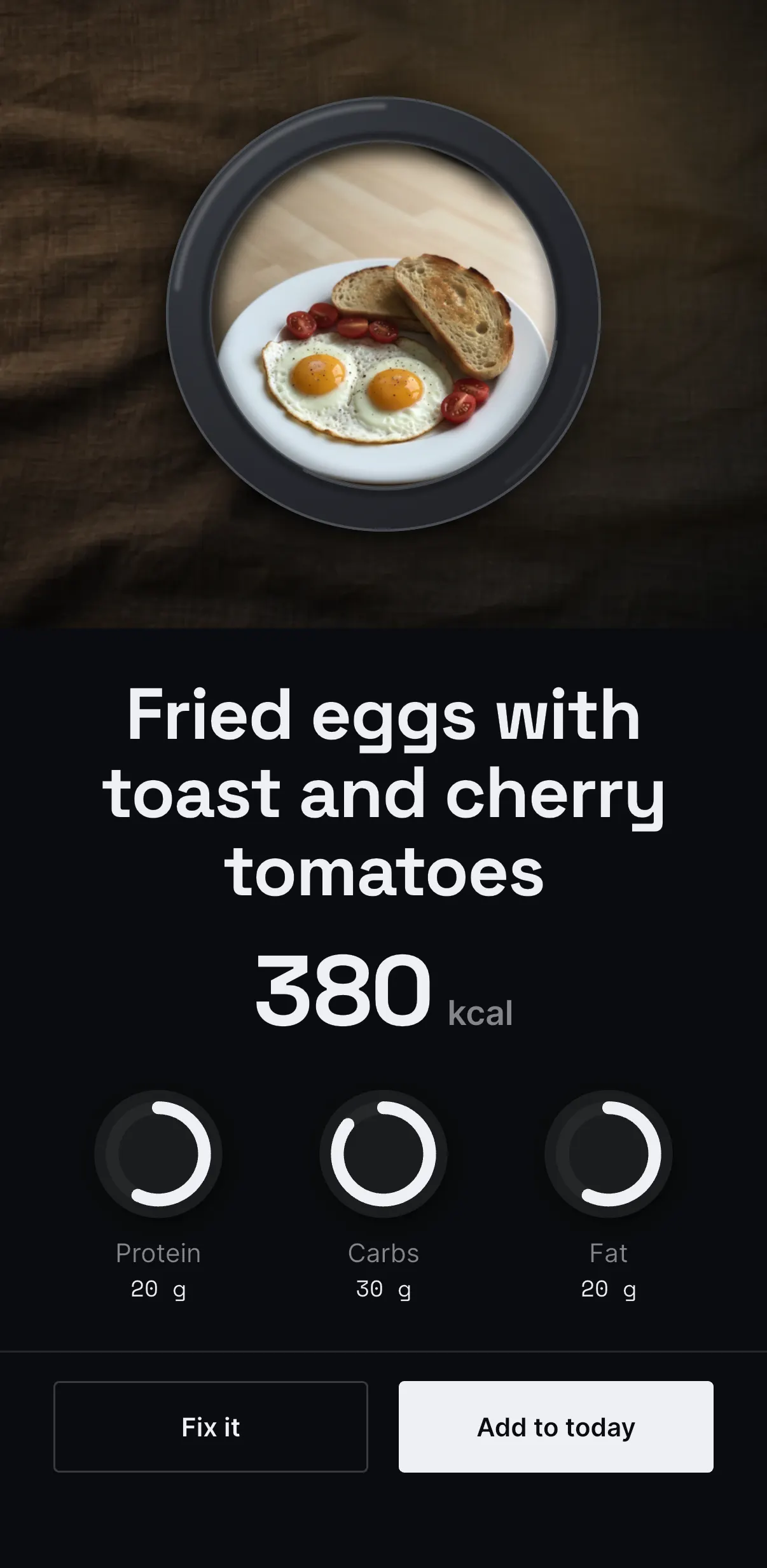
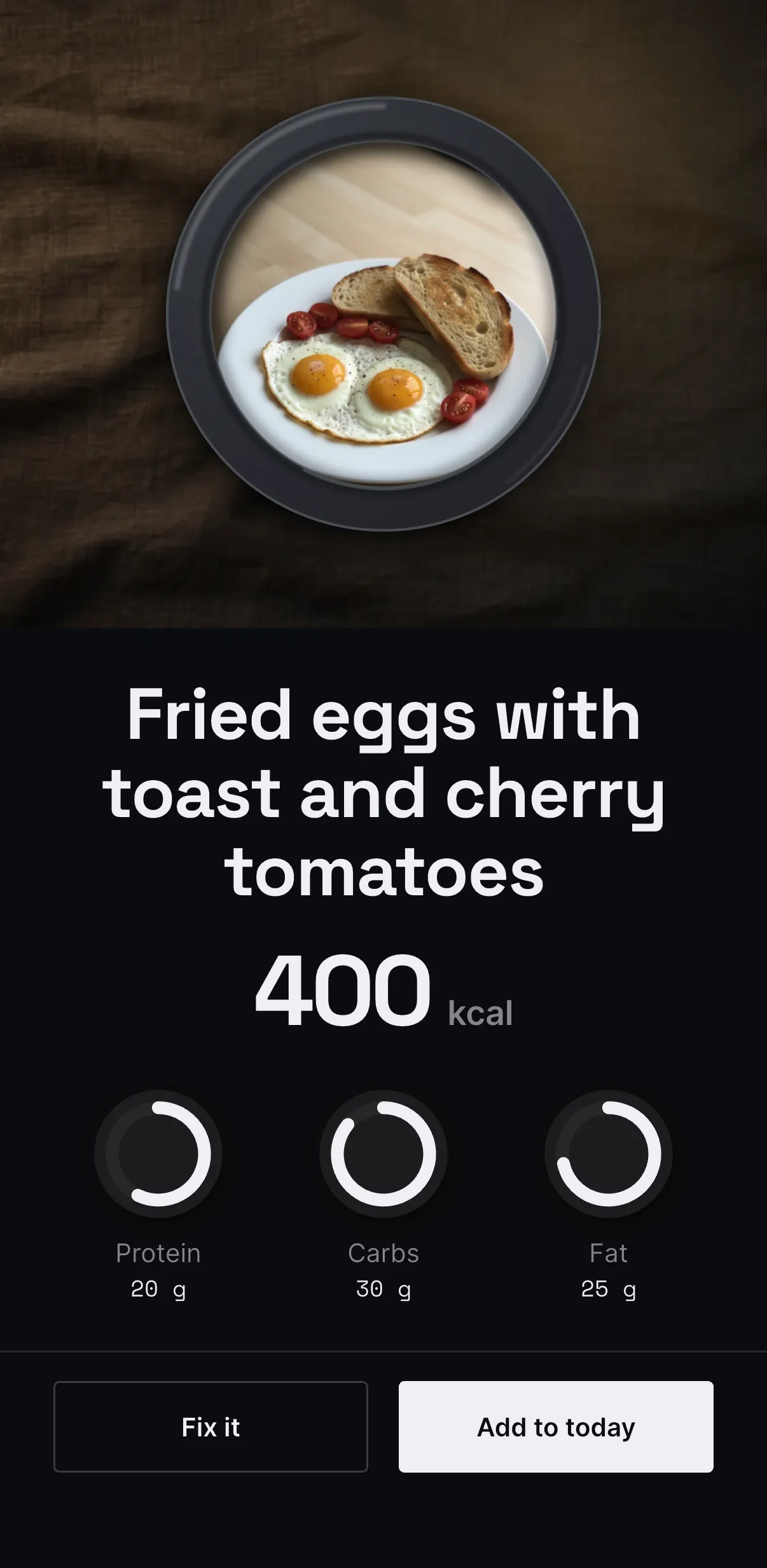
Plate shows what it thinks the meal is, with estimated calories, protein, carbs and fat. Check the name and portion before saving.
Step 4
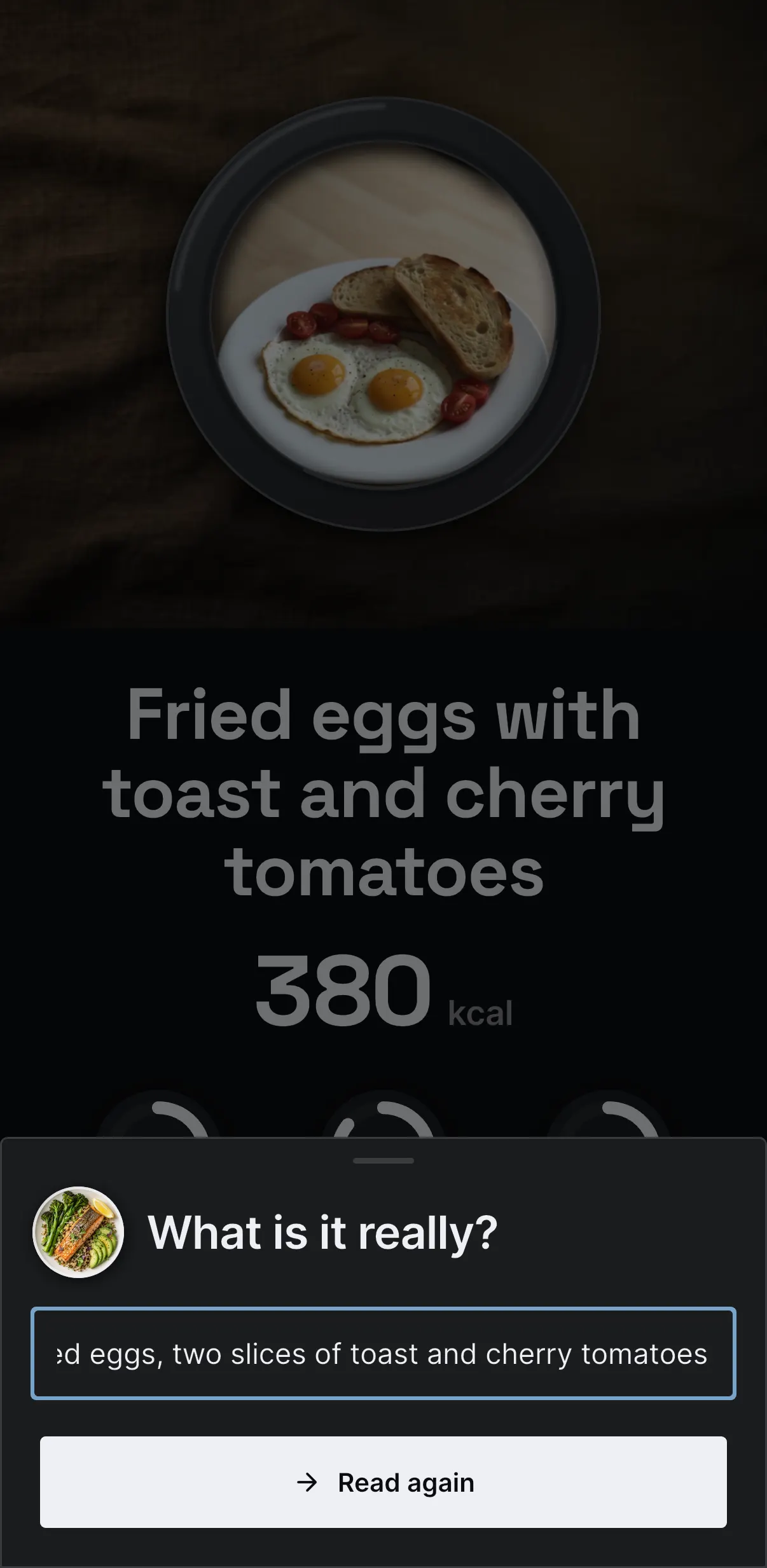
Correct a wrong guess
If something is wrong, tap Fix it. Write what is really on the plate, then tap Read again. If the first reading looks right, skip this step.
Step 5
Add it to your day
Check the new reading, then tap Add to today. Plate saves the meal and takes you back to Today.
Step 6
See what you have eaten
Your meal now appears in Today. The plate and rings update, and the meal stays in the list below. Scroll down to see it.